-
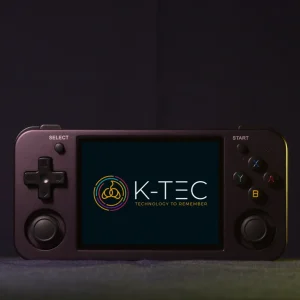 Anbernic RG353MPrice range: £144.90 through £154.90
 -
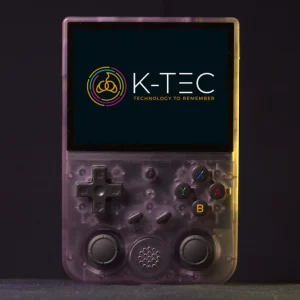 Anbernic RG353VPrice range: £114.90 through £124.90
 -
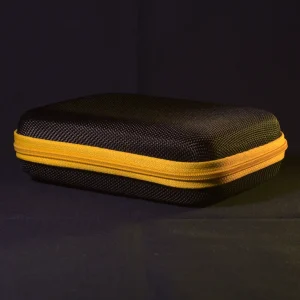 Hardshell case for Anbernic RG353V or PowKiddy RGB20S£12.90
The Master’s Touch: Your Calibrated Handheld
Welcome to the inner circle. Your Anbernic RG353M or RG353V is no longer the raw, unrefined slate that left the factory. While standard units are shipped with generic settings that often result in stuttering audio and stretched visuals, your device has been manually calibrated by K-TEC.
We have installed two bespoke operating systems: ArkOS (Linux) for a pure, console-like experience, and GammaOS (Android) for superior battery life and touch-screen capabilities.
We have spent hours tweaking performance, removing unsightly borders from home computer emulators, and re-mapping controls so you can simply press ‘Start’ and play. Below is everything you need to know to enjoy your machine.
The Dual-Boot System
This device has a split personality. You choose the operating system based on the microSD card slots:
- Linux (ArkOS): Insert the 16GB System Card into the TF1/INT slot. Turn the device on. This is best for a distraction-free, dedicated gaming experience.
- Android (GammaOS): Eject the TF1 card (leave the TF2 game card in). Turn the device on. This offers smartphone-like sleep modes and a visually rich interface (Daijishou).
Controls
The location of the FUNCTION (F) button differs depending on your model. This button is critical for shortcuts.
| Model | Function Button Location |
|---|---|
| RG353M (Metal) | On the top edge, next to the charging port. |
| RG353V (Vertical) | In the centre of the face, just below the screen. |
Linux Mode (ArkOS)
When the TF1 card is inserted, the device boots into ArkOS. This is a streamlined, high-performance OS.
Essential Shortcuts (ArkOS)
We have standardized the hotkeys so you never lose progress. Note: The F key refers to the FUNCTION button described above.
| Action | Shortcut Combination |
|---|---|
| Exit Game | SELECT + START (Press twice) |
| Safe Shutdown / Quick Mode | F + POWER (Tap once) |
| Sleep | POWER (Quick press, tap again to wake up) |
| Retroarch Quick Menu | SELECT + X |
| Retroarch Save State | SELECT + R1 |
| Retroarch Load State | SELECT + L1 |
| Retroarch Fast Forward | SELECT + R2 (Hold) |
| Add Favourite | Y when in game list |
| Remove Favourite | Y when in favourites list |
| Swap DS Screens | See “Platform Specific Controls” below |
Quick Mode (ArkOS)
Quick Mode saves your game and powers down instantly. When you turn the device back on, it launches straight back into that specific moment in the game.
Android Mode (GammaOS)
When the TF1 card is removed, the device boots into GammaOS. We have pre-configured the Daijishou frontend, which aggregates your games into a beautiful gallery.
Performance Modes
Swipe down from the top of the screen (twice) to access the Quick Settings panel. You will see a button to toggle Performance Modes:
- Power Saving: Ideal for 8-bit and 16-bit systems (NES, SNES, Genesis). Maximum battery life.
- Normal: The sweet spot. Good for PS1.
- Max Performance: Necessary for N64, Dreamcast, and PSP. Will drain the battery faster.
Essential Shortcuts (GammaOS)
Because Android handles inputs differently, the shortcuts vary slightly from Linux mode. Note: The F key refers to the FUNCTION button described above.
| Action | Shortcut Combination |
|---|---|
| Exit Game | Hold the F button |
| Navigate Front-End | L2 / R2 or swipe to jump between consoles |
| Sleep / Wake | Tap POWER button (Smartphone style) |
| Retroarch Slow Motion | F + L1 |
| Retroarch Load State | F + L2 |
| Retroarch Save State | F + R2 |
| Retroarch Fast Forward | F + R1 |
| Screenshot | F + Y |
| Switch DS Screens | See “Platform Specific Controls” below |
Platform Specific Controls
ZX Spectrum, Amstrad, Commodore 64
These computers relied on keyboards. We have mapped the most common functions to your controller.
- Virtual Keyboard: If a game asks for a specific key press, press SELECT to bring up the on-screen keyboard.
- For Amstrad, press START + Y (ArkOS) or SELECT + START (GamaOS)
- Controls: If a game asks for an input method, always select Kempston (Spectrum) or Joystick. We have pre-mapped these to the D-Pad and face buttons.
Nintendo DS
The DS had two screens, but you only have one. We have set up toggles to manage this.
- Switch Screens: Press R3 (Click the Right Stick) to swap between top and bottom screens.
- Change Layout: Press L3 (Click the Left Stick) to cycle through side-by-side or single-screen views.
Famicom Disk System (FDS)
Some games span multiple disk sides. When prompted to “Set Disk B”:
- Press L1 (Eject virtual disk).
- Press L2 (Flip virtual disk).
- Press L1 (Insert virtual disk).
Under the Bonnet: K-TEC Optimizations
We don’t just copy files; we curate experiences. Here are the specific technical adjustments we have applied to your unit.
1. Model-Specific Ergonomics (Arcade Games)
We treat the RG353M and RG353V differently based on how you hold them.
- RG353M (Horizontal): For Arcade titles that originally used vertical screens (like 1941), we have enabled TATE Mode. The screen rotates 90 degrees, filling the display. You hold the device vertically, and the controls automatically remap to the bottom.
- RG353V (Vertical): Playing a vertical handheld sideways is ergonomically painful. We have disabled TATE mode on this unit, ensuring games display horizontally with correct aspect ratios, so your hands stay comfortable.
2. The “No-Border” Policy
Classic home computers like the Commodore 64 and ZX Spectrum often display large, ugly coloured borders in emulation. We have manually configured the Cropping settings in RetroArch to zoom in on the active play area, giving you a larger image without distorting the pixels.
3. High-Performance Cores
Standard settings struggle with N64 and Amiga. We have re-routed specific games to run on optimized emulators:
- Nintendo 64: We utilize the Rice core profile for GammaOS to ensure games run at full speed.
- Amiga: We have switched the core to PUAE 2021, eliminating the audio stutter found with the default core..
- Dreamcast: We have applied a mild 150MHz under-clock to the emulated SH4 CPU. This sounds technical, but the result is smoother gameplay and synchronized audio.
- Note: Dreamcast performance is better on ArkOS.
Restoring Order: Troubleshooting
Warning: When charging, always use a standard 5V/1A or 5V/2A charger (USB-A to USB-C). Do not use high-speed USB-C to USB-C fast chargers (like those for MacBooks or modern phones), as they may damage the battery regulation circuit.
N64 Re-Launch Bug (GammaOS)
The Issue: Occasionally on Android, if you try to launch a second N64 game, the system may re-launch the previous game you were playing.
The Fix: Press the FUNCTION button, tap Exit to fully close the emulator, and then select your new game from the menu.
FDS Loading Error
The Issue: When swapping disks on Famicom Disk System, you may see an error message.
The Fix: Press FUNCTION (Android) or FUNCTION + Start (Linux) to open the menu, select Restart, and try the disk swap combination (L1 -> L2 -> L1) again.
Ready to Play?
Your device has been set up to get out of your way. Select a game, press Start, and enjoy the history of gaming in the palm of your hand.