
Recommended products
-
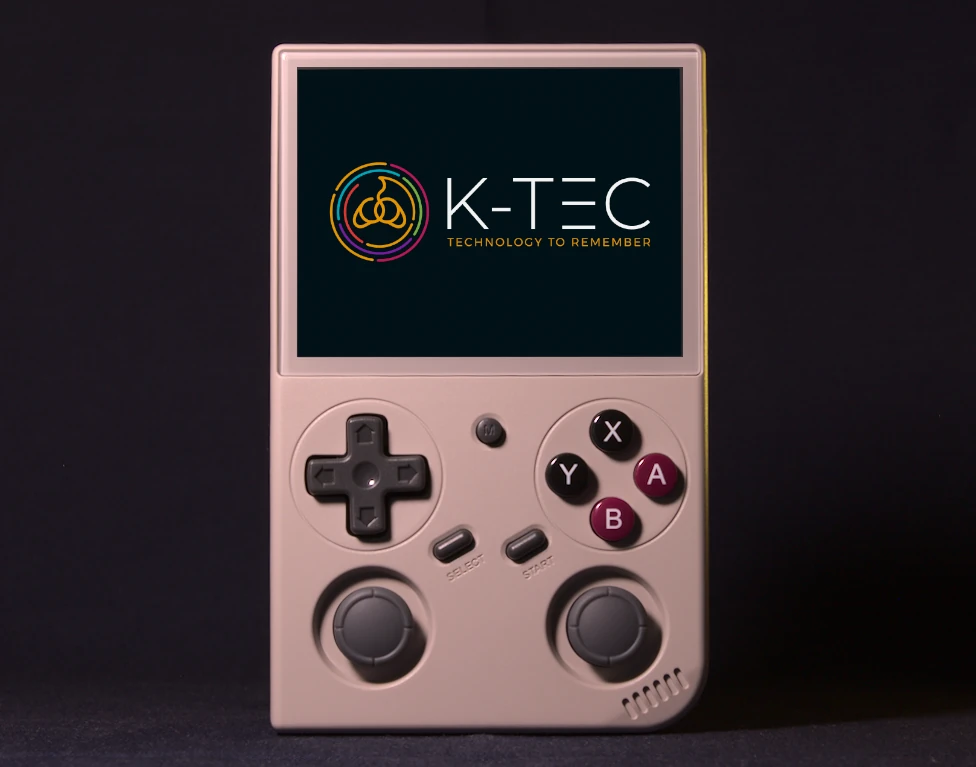
BATLEXP G350
Price range: £94.90 through £109.90 -
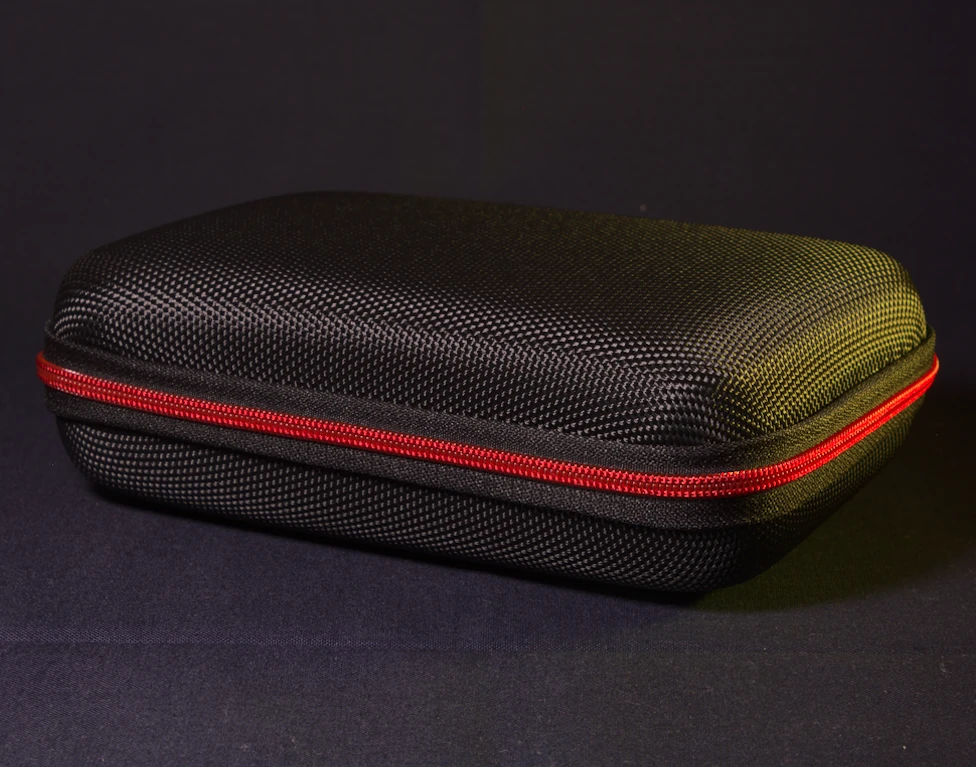
BATLEXP G350 Carrying Case
£12.90
Getting Started
Your BATLEXP G350 has two microSD cards
Your G350 uses two separate microSD cards, each with a different job:
| Card | Capacity | Purpose |
|---|---|---|
| System card | 16 GB | Contains the dArkOS operating system and emulator software. Do not remove or modify this card. |
| Games card | 64 GB or 128 GB | Contains your games library. This is the card you interact with when adding games. |
Both cards are brand-name (Kioxia) and are covered by my Lifetime SD Card Guarantee.
First boot
- Make sure both microSD cards are inserted in the slots on the sides of the device.
- System card in “TF1/INT”
- Games card in “TF2/EXT”
- Press and hold the Power button (top-right edge) for a few seconds until the screen lights up.
- You will see the platform selection screen, showing your available game systems.
Charging
Plug a USB-A to USB-C cable into the port on the top of the device. A full charge takes approximately 3-4 hours and provides several hours of gameplay.
Charging
Warning: When charging, always use a standard 5V/1A or 5V/2A charger (USB-A to USB-C). Do not use high-speed USB-C to USB-C fast chargers (like those for MacBooks or modern phones), as they may damage the battery regulation circuit.
Tuning
I have used my expert knowledge to tune the configuration of your BATLEXP G350. If you discover other tips or configurations that enhance your experience, please use the contact form to let me know. Here is a list of the changes I have made.
microSD cards
The microSD cards typically supplied with budget handhelds are unbranded and unreliable. I ship these devices with brand-name microSD cards.
I am so confident about the quality of these cards that I provide a Lifetime Guarantee.
It’s important to make a backup
Even with the lifetime guarantee I give my microSD cards, it is still recommended that you backup your card(s) as soon as you receive your device. Click for more info.
Firmware
I have replaced the stock firmware with dArkOS — a modern, Debian-based custom firmware. In my testing, dArkOS provides the best balance of performance, features, and ease of use for this device.
I have further refined the configuration with settings specific to the G350 and its RK3326 processor.
Emulators
I have configured the best-performing emulator for each games system:
| System | Emulator | Why |
|---|---|---|
| PlayStation 1 | retroarch32 / pcsx_rearmed | 32-bit ARM-optimised — best PS1 performance on this device |
| N64 | mupen64plus / Rice renderer | Best results on this processor |
| Dreamcast | retrorun32 / flycast32 | 32-bit Flycast — best Dreamcast performance available |
| PSP | PPSSPP standalone | With frameskip enabled for smoother performance |
| Amiga | AmiBerry standalone | Better than the RetroArch Amiga core |
| Amstrad CPC | retroarch / cap32 | Standard Amstrad emulation |
To try a different emulator for a specific game, see Trying different cores/emulators below.
Per-game tuning
Some games need specific settings that differ from the defaults. I have configured these individually so they work the moment you select them:
- Arcade games: I have made 41 custom controller mappings for individual games, ensuring that trackball, spinner, and twin-stick games play correctly on a handheld gamepad.
- Commodore 64: I have added configurations for games that require the joystick in a specific port so they load and play without any manual setup.
- Amstrad CPC: I have mapped keyboard keys to the gamepad buttons for specific games, so they can be played without using the on-screen keyboard.
- Vectrex: I have added authentic screen overlays for over 30 games, that recreate the coloured plastic overlays shipped with the original cartridges.
- PSP: I have tuned individual game graphics settings for the best experience on the G350’s processor.
PlayStation 1
I have configured the PCSX ReARMed emulator for the best PS1 performance on this device.
PS1 performance is excellent on the G350.
PSP
PSP pushes the upper limit of what this device can emulate. I have enabled frameskip and configured resolution and graphics settings to get the best possible experience.
The configuration files are stored on the system card.
You can show the PPSSPP menu by pressing the FUNCTION button.
Nintendo 64
I have configured the standalone Mupen64Plus emulator with the Rice renderer, which gives the best N64 performance on this device’s RK3326 processor.
I have also configured the button mapping to match the common layout used for N64 emulation (L1 used for L-targeting, right analogue stick directions used for C-inputs).
N64 performance varies by title. Some games run well, others are more demanding.
Nintendo DS
Nintendo DS uses the standalone Drastic emulator.
Games that do not use the touch screen are the most playable on the G350’s single screen. R2 swaps between the two DS screens.
Dreamcast
I have set the emulator to retrorun32 with the Flycast32 core, which gives the best Dreamcast performance available on this device.
Dreamcast is at the upper limit of what the G350 can handle. Some titles run well, others will struggle.
Game Boy
I have set the screen colour to a light green, matching the original Game Boy display.
If you would like to try a different colour palette, use L1/R1 to cycle through the available options.
All RetroArch cores
Shaders
I have configured shaders to improve the display of retro games on your G350’s high-resolution screen.
Aspect ratio set to “Core Provided”
This tells each emulator to conform to the original screen shape of the system it is emulating, preventing games from appearing squashed or stretched.
Save states
Your G350 is configured to automatically save your progress for most platforms (excl. Dreamcast, PSP, N64 and a few others) when you exit a game and automatically load it when you start the game again. This means you can pick up exactly where you left off without manually saving.
Fast-forward and rewind
- Fast-forward: Hold
R2to play at 3× speed. Useful for grinding through sections you have played before. - Rewind: Hold
SELECT + L2to rewind a few seconds and undo a mistake.
Not supported by Dreamcast, PSP, N64 and a few other platforms.
Hints
Hotkeys
Function/Menu button
The FUNCTION button is the small, circular button in the middle of the device.
| Action | Hotkey |
|---|---|
| Safe power-off | FUNCTION + POWER |
| Quit game (RetroArch cores) | SELECT + START twice in quick succession |
| Quit game (standalone emulators) | SELECT + START once |
| Sleep | Quick press POWER button; press again to wake |
| Favourite a game | Y when in game list (press again to un-favourite) |
| RetroArch Quick Menu | SELECT + X while in-game |
| Quick save | SELECT + R1 |
| Quick load | SELECT + L1 |
| Fast-forward (hold) | Hold R2 |
| Rewind (hold) | Hold SELECT + L2 |
Turning off the device
Hotkey
Press the FUNCTION + POWER button for safe shut down.
Hard shutdown or reset
If the device crashes and the normal methods do not work, you can perform a hard shutdown by holding the POWER button for several seconds.
Use this only as a last resort, as it risks data corruption.
Prevent data corruption
Your device is a handheld computer and, as such, should be powered down in a safe manner. Otherwise, there is a risk of data corruption.
Quitting a game
When using a RetroArch core
Most systems are emulated using RetroArch cores. Press SELECT + START twice in quick succession to quit a game.
Standalone emulators
Some systems use standalone emulators — N64, PSP, Dreamcast, and Nintendo DS. Pressing SELECT + START once will quit these.
Sleep
You can put your G350 into sleep mode with a quick press of the POWER button. Press it again and the device quickly returns to exactly where you were.
Sleep mode drains the battery slowly. I do not recommend leaving the device in sleep for extended periods — it may eventually run out of battery and the resulting unsafe shutdown could corrupt data.
Show the RetroArch menu
Select RETROARCH from the platform selection screen. You will see retroarch and retroarch32 — these are the 64-bit and 32-bit versions respectively. Each game system is configured to use whichever version performs best for that system.
To bring up the Quick Menu while in a game, press SELECT + X.
Adding more games
Your games are stored on the games card (the larger 64 GB or 128 GB card). To add more games:
- Safely shut down the device (
FUNCTION + POWER). - Remove the games card. It is the right-hand slot.
- Insert it into your computer using a microSD card reader.
- The card has a partition called
GAMES-64GBorGAMES-128GB— open it. - You will see folders for each system (
snes,psx,gba, etc.). Copy your game files into the appropriate folder. - Safely eject the card from your computer and reinsert it into the G350.
Windows users: If the GAMES partition does not appear, open Disk Management and assign it a drive letter. This is a one-time fix.
Mac users: Be careful that macOS does not add extra characters to filenames — this is a known cause of games not appearing.
Do not delete existing folders in the GAMES partition — some contain files that the emulators need.
Adding cover art
- Sign up for an account at https://screenscraper.fr/
- On your G350, press
SELECT - Go to
SCRAPERand add the username and password you just signed up with - Select
SCRAPE NOW -> START
Trying different cores/emulators
For a platform:
- Press
SELECT - Choose
EMULATOR SETTINGS, then the platform you want to change - Change
EMULATOR- Depending on the
EMULATOR, there may be additionalCOREchoices.
- Depending on the
For a specific game:
- Highlight the game in the game list.
- Press
SELECT. - Choose
Edit this game's metadata → Emulator. - Select the emulator you want to try.
Favourite games
Press Y on any game in the list to add it to your favourites. Favourites also appear in a “Favorites” entry in the platform list.
Press Y on a favourited game to un-favourite it.
Understanding Performance
Your G350 uses the RK3326 processor. Here is what to expect from each system:
Excellent — plays at full speed
NES, SNES, Mega Drive, Master System, Game Boy, Game Boy Color, Game Boy Advance, Atari 2600, Atari 7800, Arcade, PlayStation 1, Commodore 64, Amstrad CPC, ZX Spectrum, Amiga, TurboGrafx, Atari Lynx, Game & Watch
Good — most games playable, some may struggle
Nintendo 64, Nintendo DS, Dreamcast, PSP
Not available
PlayStation 2, GameCube, Wii, Nintendo 3DS and later systems. The G350 is not powerful enough to emulate these.
A note about partial systems: For N64, DS, Dreamcast, and PSP, performance varies from game to game. Some titles run beautifully, others push the processor to its limit. I have tuned the emulators to give you the best experience possible — but some games on these systems will not run at full speed. This is a limitation of the hardware, not the configuration.
Connectivity
The G350 is a pure portable gaming device. It does not have WiFi, Bluetooth, or video output.
This means:
- You cannot connect to the internet, download games wirelessly, or update the firmware over the air.
- You cannot use wireless controllers or Bluetooth headphones.
- You cannot connect the device to a TV or external display.
Games and files are transferred by removing the games card and connecting it to a computer (see Adding more games above).
Troubleshooting
The device will not turn on
- Make sure both microSD cards are firmly inserted.
- The battery may be completely flat — connect the USB-C cable and charge for at least 30 minutes before trying again.
- If it still does not respond, hold the
POWERbutton for 10 seconds and try again.
A game does not appear in the list
- Make sure the game file is in the correct platform folder on the
GAMES-64GBorGAMES-128GBpartition. - Make sure the file extension is supported for that system (e.g.
.sfcfor SNES,.gbafor GBA). - Mac users: check that macOS has not added extra characters to the filename.
A game runs slowly
- Check the performance table above — some systems are at the limit of what the G350 can handle.
- For PS1 games: fast-forward and rewind are disabled for PS1 because they cause a significant performance drop.
- You can try a different emulator for that game (see Trying different cores/emulators).
Controls feel wrong in a game
- I have pre-configured controls for many specific games. If you bought your G350 from K-TEC, and a game feels wrong, please contact me — I may be able to help.
- You can access controller settings through the RetroArch Quick Menu (
SELECT + Xwhile in-game).
The screen saver starts playing random games
After several minutes of sitting idle, your G350 will start showing gameplay videos. This is the screen saver. Press START to play the game currently displayed, or press any face button to exit the screen saver.
An SD card has failed
If you bought your G350 from K-TEC, contact me through the contact form and I will replace or rewrite it under the Lifetime SD Card Guarantee.
Glossary
dArkOS
The operating system running on your BATLEXP G350. It is a version of Linux (Debian-based) that has been streamlined to run emulators efficiently.
RetroArch
RetroArch provides most of the emulators (called “cores”) that run your games. The RetroArch menu is used to configure settings for those cores.
Core
A core is an emulator that has been adapted to work with RetroArch.
Emulator
Using an emulator, your device pretends that it is a different machine. For instance, using the PCSX ReARMed emulator, your G350 pretends that it is a PlayStation. It can then run games designed for the PS1. Some systems are more difficult to emulate than others — Nintendo 64 and Dreamcast, for example, require significantly more processing power than NES or SNES.
EmulationStation
The visual menu system on your G350. It displays your game systems and games with box art and descriptions, letting you browse and launch games without touching a command line.
GAMES-64GB or GAMES-128GB
The partition on your games card where your game files are stored. It uses the exFAT file system so it can be read by Windows, Mac, and Linux computers.
Save state
A snapshot of your game at an exact moment. For most platforms, your G350 automatically creates a save state when you exit a game and loads it when you return.
Contact
If you need help with your BATLEXP G350 from K-TEC, please use the contact form or visit the Knowledge Base.
For SD card issues, see the Lifetime SD Card Guarantee.